Skip to content
Tutorial

How to save and find downloaded videos on Android

Playing a video on Android does not mean it has been saved, and a missing gallery entry does not necessarily mean downloading failed. Finish saving first, then locate the file in the browser download list or device file manager. Menus and locations vary.

  • No account needed
  • Phone and desktop
  • Public links only

SniffVid TeamPublished Last reviewed

Bot protection

Paste a link above to see every available video, audio and cover download.

By using SniffVid you agree to our Terms of Service and Privacy Policy

The short answer

  • Confirm that the browser finished downloading. An online player is not proof of a saved file.
  • Chrome has a Downloads menu; a file manager can help locate files by name or recent activity.
  • Downloads and the gallery are separate views. Audio files are not gallery videos.
  • Try saving complete files directly. Merging complementary tracks depends on storage, memory and codec support.

These points describe the current download workflow. See the page-specific verification note below for what was checked; upstream availability and returned tracks can change.

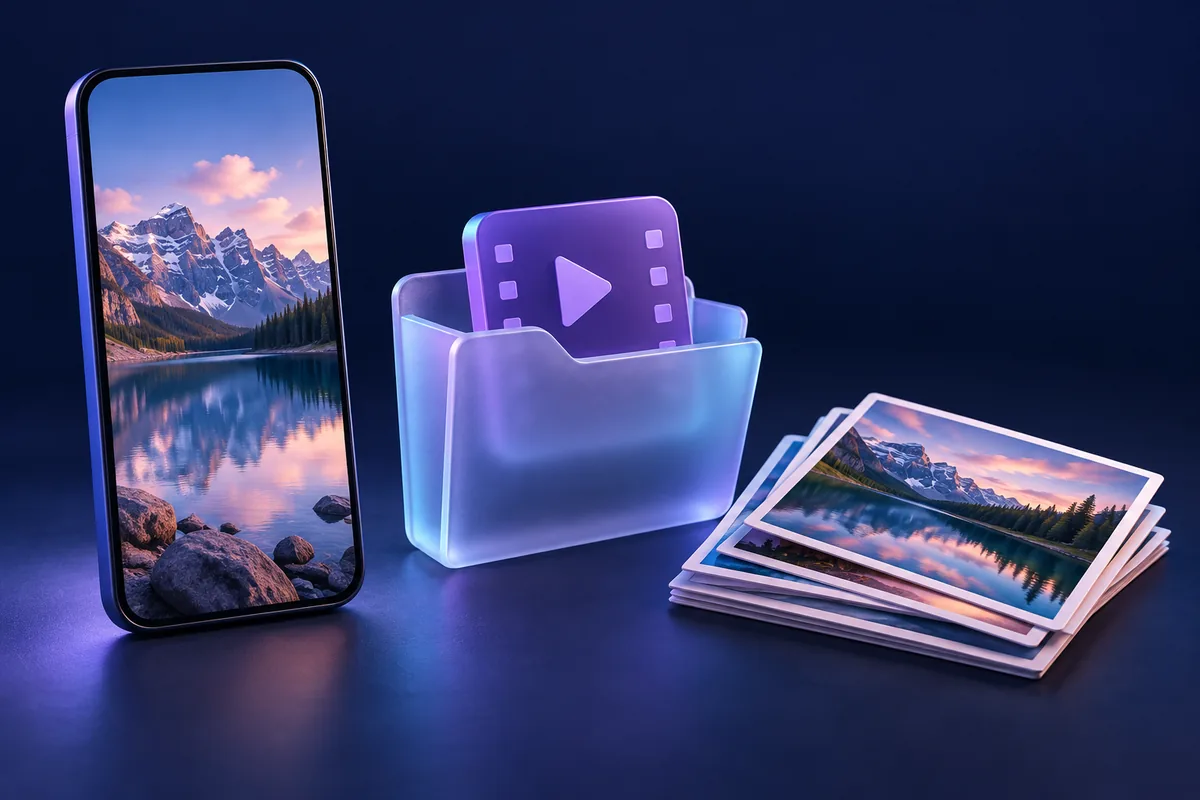
An unbranded phone beside a glass file folder and a stack of landscape photo prints.
Concept illustration of a file and a photo library. System menus and supported file formats vary.

Step by step

Follow the controls actually offered by the result panel; formats and browser capabilities can vary.

  1. 1

    Parse the original URL in a browser

    Use one public post, video or track URL. If an in-app browser lacks the needed controls, copy it to a standalone browser such as Chrome and verify when prompted.

  2. 2

    Save the returned result and wait

    Use Save video for a complete video or Save audio for audio-only results. Try Merge & Save MP4 only for complementary tracks, and keep the page open.

  3. 3

    Find the file and test playback

    Check the browser download list, then the Files or device file manager app and its downloads category or actual save location. Check size, duration and playback at the start and middle.

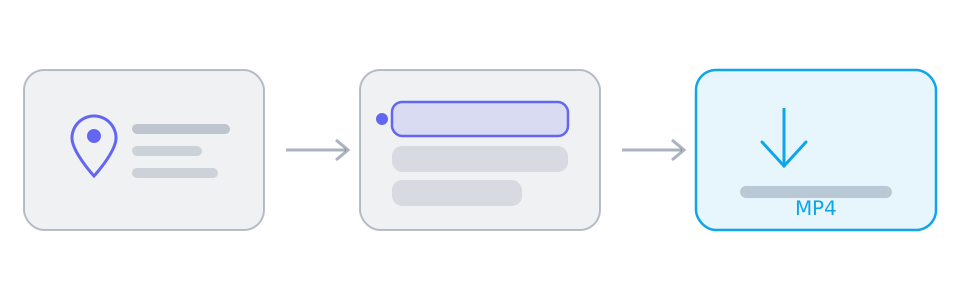
Three panels showing a video link, a list of available tracks, and the saved file.
Every download follows the same three stages: paste a link, choose from the tracks the parsers return, then save. The middle panel is where the decision happens.

Work in this order: finish saving, find the file, then check playback before downloading another copy.

Start with the Chrome download list

Open Downloads from the Chrome menu to check the filename and completion state. Google also directs users to the Files app to find downloaded files. Menu placement can differ by browser and device.

Find it in the file manager

Open Files, My Files or the device file manager. Check recent files, downloads or the browser save location; search by filename or sort by date. Download or Downloads is a useful clue, not a universal fixed path.

The file exists but the gallery does not show it

Open the video directly from the file manager first. If it plays, use that local file rather than downloading again just for a gallery thumbnail. Gallery inclusion depends on the app and device. Audio, playlists and incompatible video files may not appear like ordinary gallery videos.

Save opens a player instead

Use a download or save action if the browser provides one; try the relay button if the result panel offers it. Without a completed download record, online playback alone does not establish that a file is stored on the phone.

An in-app browser cannot save the file

If the app web view lacks download or file-sharing controls, use Open in browser when offered or copy the original URL into a standalone browser. You may need to verify again. Parse the original post instead of relying on an old temporary media link.

Merging stalls, fails or shows no location picker

The app tries a browser save picker and then temporary storage, so a location dialog is not guaranteed. Keep the page open, leave enough free space and check Downloads after completion. Large files, storage quota, memory or codecs can prevent completion; try a desktop browser with sufficient storage after repeated failures.

The result is audio or only a short preview

A platform such as SoundCloud may return audio-only media: check it in an audio player, not the video gallery. Compare the actual duration. A preview, manifest or unreadable address does not establish a complete track or video download.

Reference

These tables are shared across the site, so a figure you saw on one page is the figure you see here.

How to read the result panel, by the way the platform serves its media
When the platform…The result panel showsWhat you do
Serves one finished fileA single track with picture and sound already togetherUse the offered save action without merging; completion still requires readable media and a supported browser.
Splits picture and soundTwo lists: video-only tracks and audio-only tracksChoose one complementary track of each kind and merge in a supported browser; phones may have storage or memory limits.
Needs relaying or blocks browser readsThe same tracks, routed through a short-lived relay linkYouTube and X use relaying by default; merging chooses a transport automatically. For other single-file results, try the relay button if offered.
A phone-width view of the downloader: the link box and the Get Download Links button stacked at full width.
The same page at phone width. The box and the button stack, so the paste target spans the screen — nothing to pinch or zoom before tapping.

Background and edge cases

Separate saving failures from local playback problems

If the file is missing or incomplete, troubleshoot the download. If it exists but will not play, check completeness and player compatibility; renaming an extension does not convert codecs. Use the linked failure guide for expired links or a source refusing media.

Limits of mobile merging

A phone can try this workflow, but not every Android browser can merge large files. These steps describe the controls currently available; no SniffVid app installation, fixed quality or output format is promised.

Frequently asked questions

No. Check the browser download list and save location, then search the file manager by name or time. Device, browser and storage settings vary.

First check that the local file exists and plays. Gallery indexing, thumbnails and format support vary, and an audio-only file is not a gallery video. A missing entry alone does not establish download failure.

You can try when complementary tracks are returned. Storage APIs, space, memory, codecs and readable media are still required. Try a desktop browser if it repeatedly fails.

No. The browser may use its default folder, and merging may use temporary storage before offering the finished download. Check the completion message and download record.

Only when the source actually supplies MP3. SniffVid does not transcode M4A, AAC or other audio, or expand a preview into the full track.

You may need to. The credential stays in the current downloader memory and is not carried across pages or browsers. Parse the original link again.

How this was checked

How this was checked

File-location steps use official Chrome and Android help, checked against the current single-file save, browser picker and temporary-storage fallback code. This round did not test every Android device or establish a mobile merge success rate.

  • The page-specific note states which behavior was reviewed and which live samples, if any, were tested.
  • Track availability depends on the parsing service. Table sizes are illustrative ranges, not measurements of every video.
  • A source may change or restrict access; the result panel is the reference for the current link.

Who maintains it

Written and reviewed by SniffVid Team, the people who build and run SniffVid. Guides answer practical questions and are updated as capabilities change. Product promotions are labeled separately. Read the editorial policy

Published · Last reviewed · Content last reviewed

Sources and further reading

Primary documentation for the claims on this page. Nothing here cites another downloader as an authority on how downloads behave.

Keep reading

Other tutorials, and the tool pages for the sites people download from most.

Tool pages for the biggest platforms

Dedicated pages combine the downloader with platform-specific link instructions and limits. Choose one below.