
Saving works the same way on iPhone and iPad: SniffVid resolves the link, the browser hands the bytes to iOS, and the Files app takes over. Only the last step differs from a desktop, because iOS asks you where to put the file instead of dropping it into a Downloads folder.
Where the file actually goes
When a browser hands a file to iOS, the system shows a save sheet and the file lands exactly where you tapped. There is no single folder everything falls into, which is why a download can seem to disappear even though it completed.
- Open the Files app, then On My iPhone → Downloads
- Pull the list down to refresh if the file has not appeared yet
- Long-press a file to rename, move or share it
Getting the video into Photos
A downloaded MP4 is a file, not a camera-roll item, so Photos will not show it on its own. Open it in Files, tap Share and choose Save Video. Photos accepts the MP4 the platform served, so nothing is converted on the way in.
Audio files stay in Files
Photos only takes pictures and video, so an audio track you saved has no camera-roll equivalent. It stays in the Files app and plays from there, which is fine for listening but worth knowing before you go looking for it in Photos.
- Play it straight from Files, or share it into a music or podcast app
- A transcript or note-taking tool can open it from Files directly
- It is an M4A file, not an MP3 — SniffVid copies the stream rather than converting it
The one step a phone cannot do
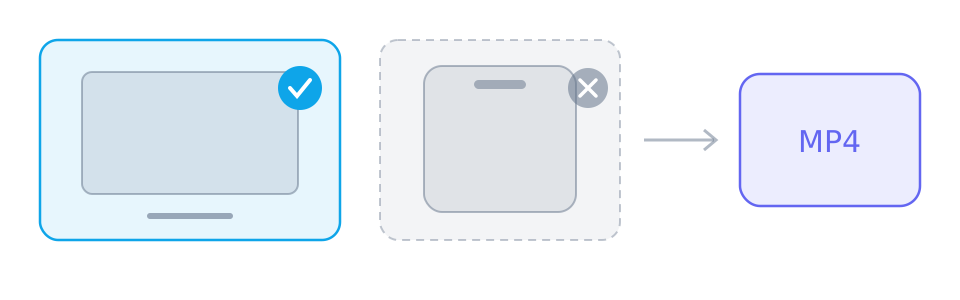
When a platform serves picture and sound as separate streams, SniffVid joins them into one MP4 in the browser. That merge needs the File System Access API, which Safari and mobile browsers do not expose, so on an iPhone or iPad you save one track at a time.
- On a phone: save the video track, then the audio track, one after the other
- On a desktop: select one track of each and press Merge and save MP4
- If the platform returns a single finished file, there is nothing to merge on any device
Links expire after fifteen minutes
Every media address SniffVid returns is wrapped in an encrypted token that dies after fifteen minutes. On a phone that matters more than on a desktop: switching apps to open Files can take long enough that a fresh parse is the quicker route.
- If a button reads Expired, paste the link again to get fresh addresses
- The token belongs to the link rather than to you, so nothing identifies your device
Reference
These tables are shared across the site, so a figure you saw on one page is the figure you see here.
| Task | Desktop | Phone | Why |
|---|---|---|---|
| Download a public link | Yes | Yes | Parsing reads the page as an anonymous visitor, which is exactly what you are. |
| Download a private, paid or DRM-protected video | No | No | The source never hands the media to an anonymous reader, so there is nothing to copy. |
| Save one track | Yes | Yes | Works wherever the browser can write a file, phones included. |
| Merge two tracks into one MP4 | Yes | No | Needs the File System Access API: desktop Chrome, Edge or Opera. |
| Convert between formats | No | No | Streams are copied, never decoded, so MP4, M4A and whatever the source publishes is what you get. |
| Remove a watermark | No | No | The file is the platform's own copy; nothing is edited or re-encoded on the way through. |
Background and edge cases
What happens to the file after you tap save
The save sheet is the browser handing the bytes over to iOS. Once that finishes, the file is an ordinary document belonging to the Files app rather than to the browser tab, so closing the tab or letting the link expire cannot take it back.
- Closing the tab after a completed save leaves the file untouched
- An expired-link message concerns the next download, not one already saved
- The file can be renamed, moved or deleted from Files like any other document
Why the last step differs from a desktop
A desktop browser can write a stream straight to disk through the File System Access API, which is exactly what makes merging possible there. iOS exposes a save sheet instead: enough to write one file, not to build one out of two. That is the whole of the difference.
- One track at a time on iOS: a video track, an audio track, or a finished file
- Photos accepts the MP4 the platform served without re-encoding it
- iPhone and iPad behave identically here, because they share the same APIs