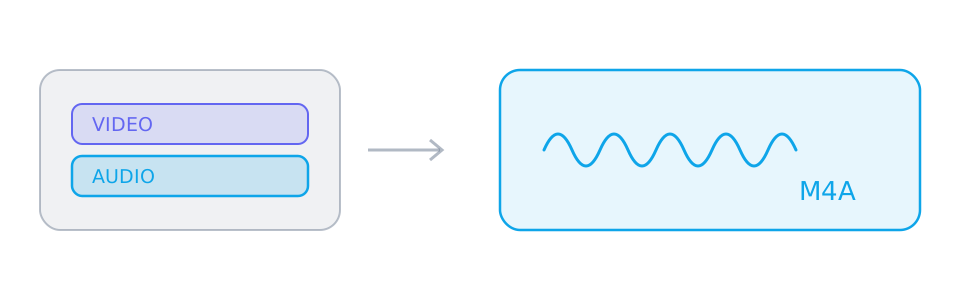
One thing is worth knowing before you start: SniffVid does not convert formats. It hands you the audio stream the platform already publishes, which is almost always AAC in an M4A container and plays in every modern player and phone.
The file you get is AAC, not MP3
Platforms publish their audio as AAC inside an M4A container, and SniffVid copies that stream as it is. The file will play in every modern player, phone and editor — but its extension will be M4A rather than MP3, because producing an MP3 would mean decoding and re-encoding.
- M4A and AAC play natively on iOS, Android, Windows, macOS and in every browser
- Converting to MP3 would decode and re-compress the audio, which this tool does not do
- If a workflow strictly requires MP3, convert the saved file locally afterwards
Why audio-only keeps the quality
Copying a stream means the bytes you save are exactly the bytes the platform served. A converter would decode and compress them again, losing a generation of quality and spending time in proportion to the length of the recording. Copying does neither.
Good uses for an audio-only file
Sound on its own is the right shape for several jobs that a video file handles badly, which is why the audio column is worth looking at even when the video is available.
- Listening to a talk or a set on a commute with the screen off
- Feeding a transcription or note-taking tool that accepts M4A
- Keeping the sound of a music video without paying for the storage of the picture
- Archiving the audio of your own upload, independently of the platform
When there is no audio track to pick
Occasionally a parser returns a single finished file with picture and sound already together, and no separate audio column. Parsing coverage changes without notice as upstream services change their behaviour, so a parse that offers no audio alone today may offer it tomorrow.
Reference
These tables are shared across the site, so a figure you saw on one page is the figure you see here.
| Quality | Typical size (10 min) | Best for |
|---|---|---|
| 1080p | 100–300 MB | Archiving, editing, or watching on a large screen |
| 720p | 50–150 MB | Phones and laptops, and anything that has to download quickly |
| 480p | 20–60 MB | Slides, talking heads and note-taking, where fine detail hardly matters |
| M4A | 5–15 MB | Listening, transcription, or saving data on a long video |
Background and edge cases
Why MP4 and M4A are the same family
Both are ISO base media containers, which is why an audio-only track inside one lands in a file with an M4A extension and still opens in anything that understands MP4. The extension describes what is inside the container, not a different kind of file.
- MP4, M4A and M4V are the same container with different conventions about their contents
- A player that handles MP4 handles M4A audio without any extra support
- Renaming an M4A file to MP3 would not convert it, and would mislead the player
When a transcript is the real goal
Speech recognition works from the audio, so an audio-only track is the right input: it is smaller to upload, faster to process, and carries no picture for the tool to ignore. Because the stream is copied rather than re-encoded, the speech is as clear as it was on the platform.
- Most transcription services accept M4A directly, so no conversion step is needed
- Lower-bitrate audio tracks are usually fine for speech, and upload faster
- If a tool insists on WAV, convert the saved file locally — nothing is lost by doing it there
What an audio-only download is not
It is not an extraction from a video file, and it is not a conversion. On a platform that publishes sound separately, the audio track already exists and is simply saved; on a platform that publishes one finished file, there is no separate audio track to pick.
- A single-file source offers no audio-only entry, and the video is what you save
- Taking the sound out of such a file afterwards is a conversion, and happens on your machine
- Nothing is re-encoded by SniffVid in either case, which is why the bitrate is unchanged